

When a request, purchase order or invoice needs your sign-off, it waits for you under Approvals. You get an email too, and you can decide from either.
- Open Approvals. The For me tab lists everything waiting on you, oldest first, with how much it is for and when it is due.
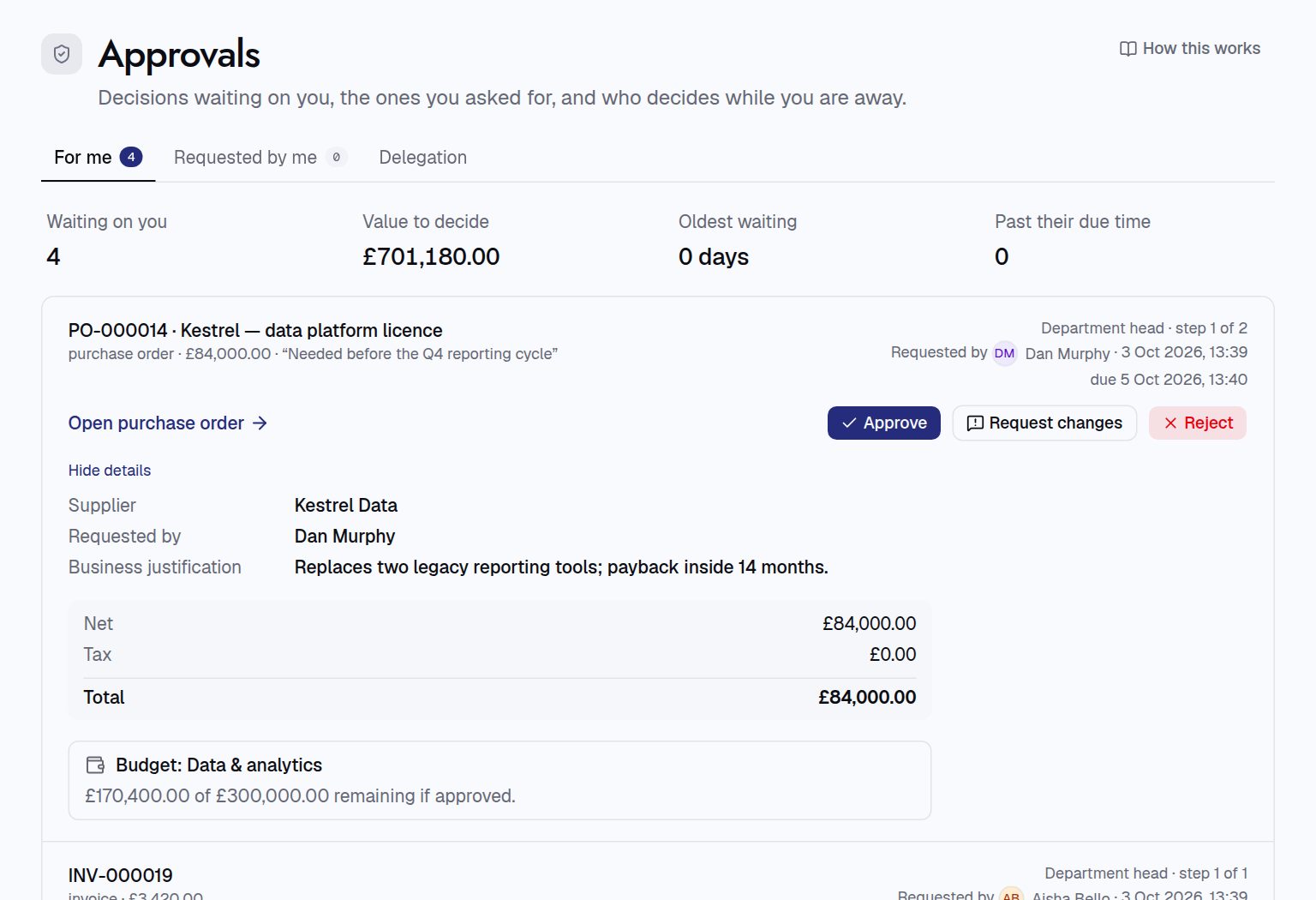
- Check the details. Each one shows the supplier, the items, the total and how it sits against the budget. Press the number to open the full record.
- Decide. Press Approve if it’s fine. To send it back, press Request changes and say what needs to change. To stop it, press Reject and say why. A comment is needed for both, so the requester knows what to do.
- Or decide from the email. Press Review and decide in the email, check it, and press a button. Opening the link decides nothing, and it works once, for 14 days.
Going away? On the Delegation tab, pick who decides for you in Delegate to, add an end date in Until (optional) if you like, and press Start delegating.
For procurement teams
- What needs approval is set in Administration › Approval policies: which record and move it covers, the conditions (such as amount over £5,000), and the steps in order. The first policy that matches applies, so value tiers are separate policies.
- Approvers can be a person, anyone with a role, the record owner, the budget owner, the head of the business unit, or the requester’s line manager. Any one person on a step can decide it.
- No self-approval: you can’t approve your own request when someone else is on the step, unless you are the only possible approver. An administrator can decide any step on the approver’s behalf.
- Due times: a step’s SLA sets when it is due. Approvers get one reminder once it is overdue.
- After changes are requested on a request, the requester fixes it and presses Resubmit.
- Moving a record by hand while an approval is pending withdraws that approval.