

A purchase order (PO) is what you send the supplier to say you’re buying. Most POs start from a request: once an offer is chosen, the request raises the PO for you with the lines and prices from the offer.
- Open the PO step. On the request, the step Raise the purchase order is filled in from the request and the chosen offer. Press Create purchase order. To raise one on its own, go to Purchase orders and press New purchase order.
- Check the lines. Make sure the items, quantities and prices are right. Nothing reaches the supplier until the PO is approved and sent.
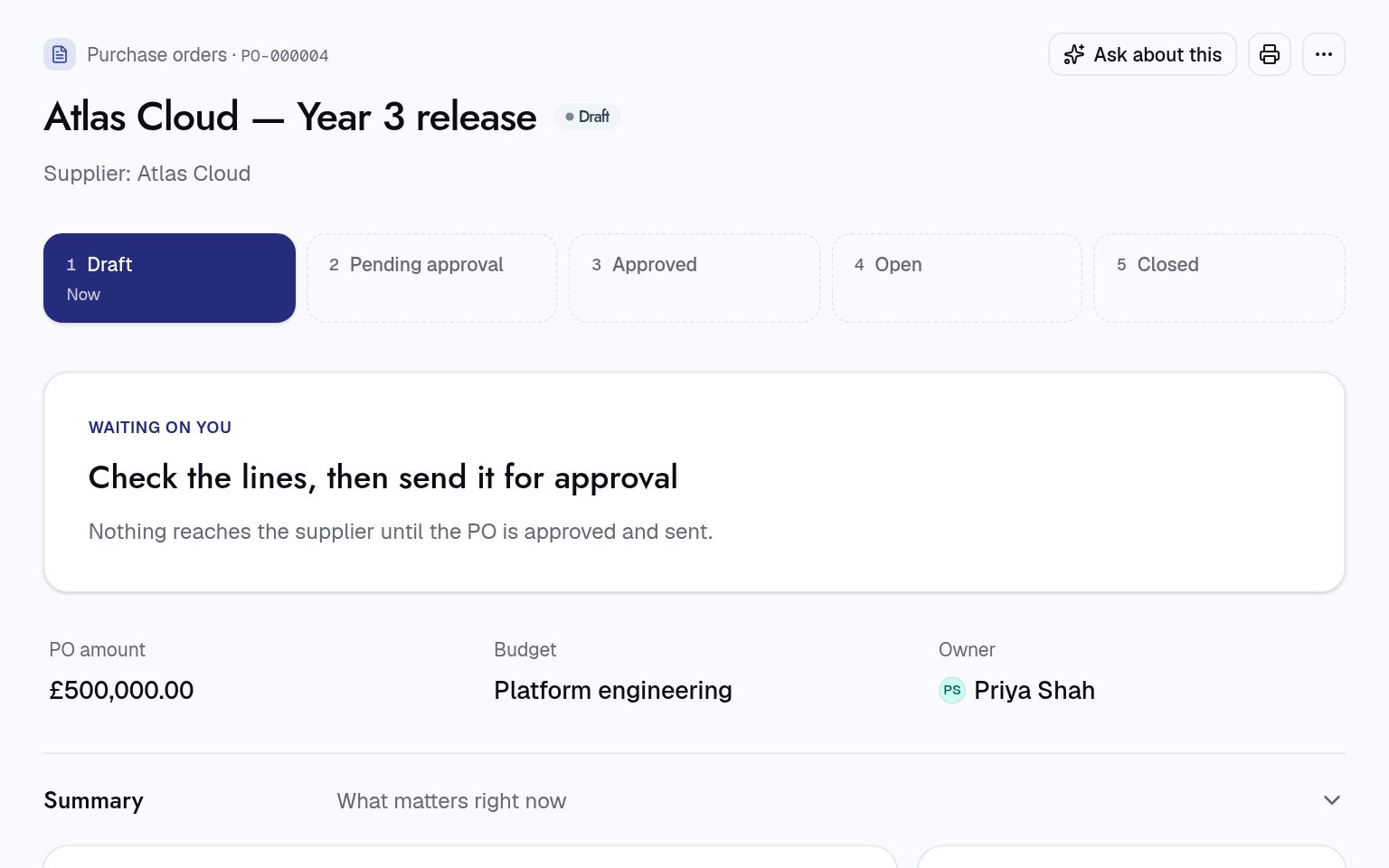
- Send it for approval. Press …, then under Move to pick Pending approval. If your approval policies cover POs, the approvers are told. The budget is checked when it’s approved.
- Send it to the supplier. Once it’s approved, press Send to supplier, check Email to, look at See what they’ll get, and press Send. The PO becomes Open.
- See what happens next. The supplier can confirm it or ask for changes. Orders and invoices against it show on the PO’s page.
Need to change an approved PO? Press Raise change order, say why, and submit it. Increases go for approval again, and the supplier gets the revised PO.
For procurement teams
- When a PO is needed: the request process only raises a PO over its threshold (£10,000 by default). Below that, the request goes straight to ordering.
- Budget check: when a PO is approved or opened, its budget is checked. Administration › Configuration sets whether going over warns the approver (the default) or refuses the move.
- Locked once approved: the supplier and currency can’t be edited. The amount and lines change only through a change order, and never below what has already been ordered.
- Blanket POs: Add a call-off PO makes smaller call-off POs against a parent, with the same supplier and currency. By default they can’t release more than the parent has left.
- A possible sanctions match on the supplier’s risk check blocks approval until someone reviews it.
Next: Receive what you ordered