

Once a request is in sourcing, you can ask suppliers to quote straight from it. Each one gets an email with a private link. They don’t need an account, and they never see your target cost, budget or anyone else’s prices.
- Open the request and go to its sourcing step. Not sure who to ask? Press Ask about this and ask “which suppliers should we approach?”. It suggests suppliers from your directory, preferred ones first.
- Press Ask suppliers to quote. Pick suppliers from the suggestions or the directory. To ask someone new, type their name and pick Add “name” as a new supplier.
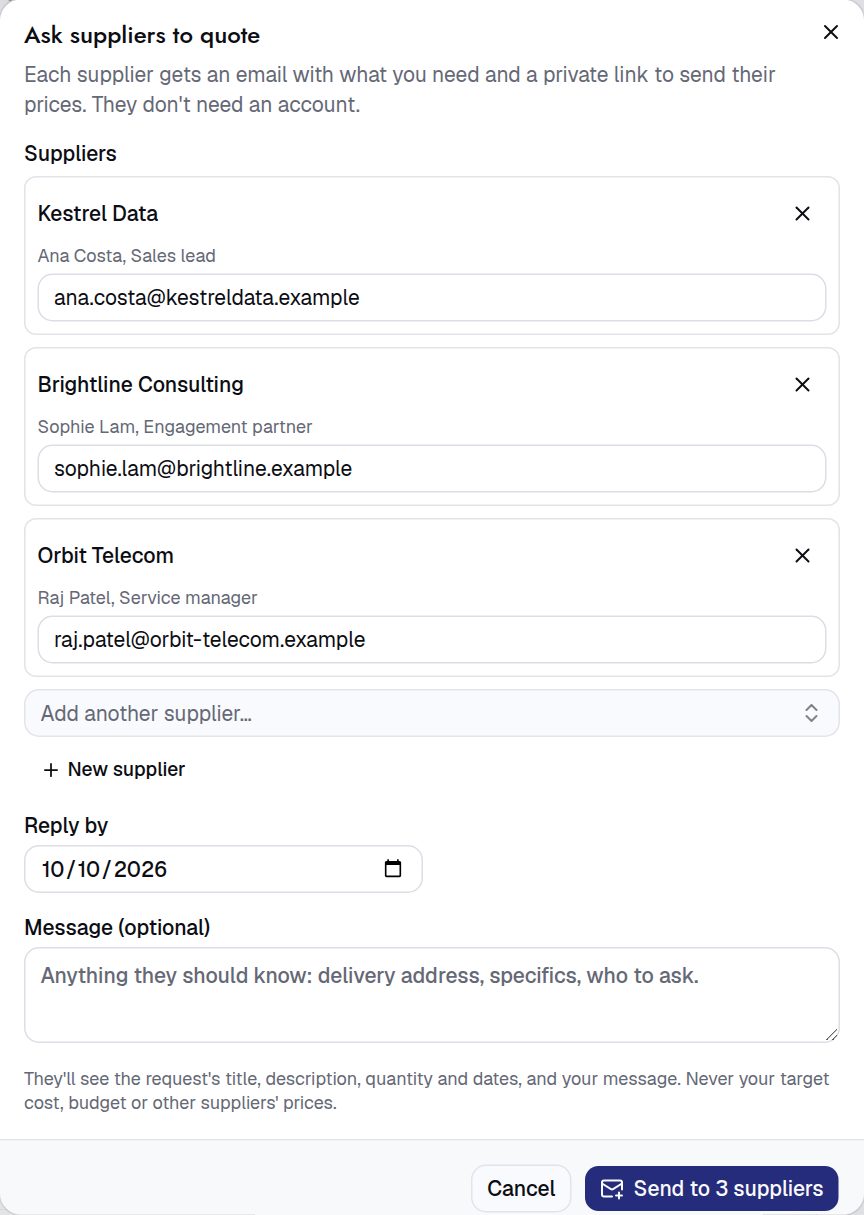
- Check the email address and date. Each supplier needs an address. Reply by starts a week ahead. Add a message if you like, then press Send to 3 suppliers (the number is how many you picked).
- Watch the replies come in. Each supplier shows as Emailed, Opened the link, then Quoted or Can’t quote. You get a note when a quote arrives.
- Quote came by email or phone? Press Add a quote (or Add another offer once one is in), pick the supplier and type in their prices. Or paste them into the assistant and press Record it.
Once the quotes are in, see “Compare offers and negotiate”.
For procurement teams
- Questionnaires: the Questions for suppliers card drafts an RFQ, RFP, tender or framework for you (Draft it for me), copies an earlier one, or starts blank. Weighted criteria must add up to 100%, and suppliers never see the criteria or weights.
- Answers by email can be typed in with Type in answers. They are marked as typed in.
- Suppliers can send a revised quote on the same link until you choose. It replaces their earlier one. The link closes for new replies at the end of the reply-by date; change the date to reopen it.
- Running a full tender? See “Run a sourcing event”.
- New suppliers found this way join your directory as prospects, with the address you used as their contact.
- Copy link on a supplier’s row gives you their quote link to send yourself. Withdraw closes it.
Next: Run a sourcing event