

Administrators set the account up: who is in it, who approves what, and where the money comes from. You can come back to any of it later.
- Invite your team. In Administration › People, press Invite someone, add their email and name, pick a role, and press Invite. They get an email with a link to join. Send the invitation again is in the row’s menu if it gets lost.
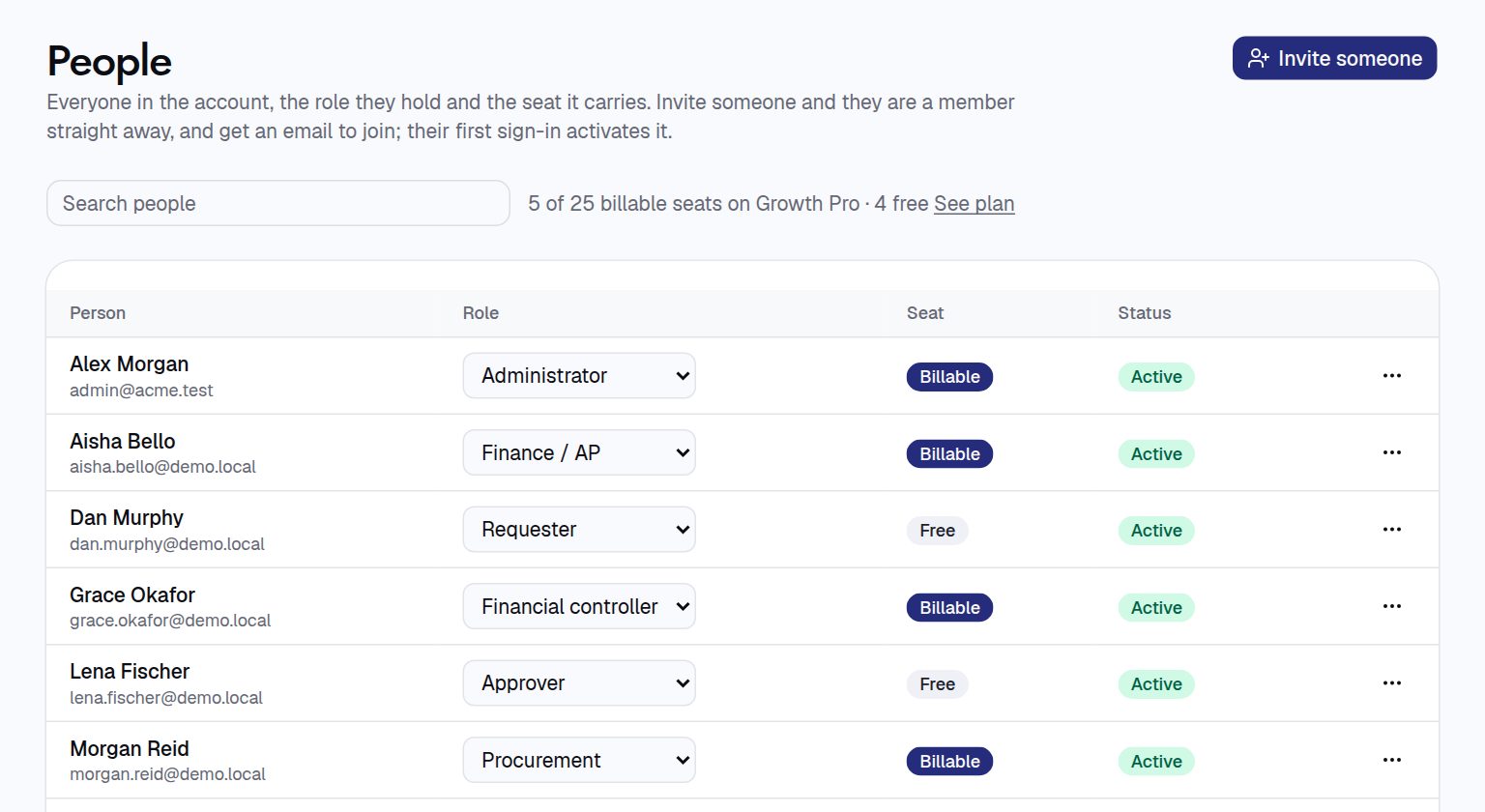
- Check the roles. Administration › Roles shows what each role can do. Copy one to make your own. Requesters, approvers and viewers are free; roles that can change more cost a seat.
- Say who approves what. In Administration › Approval policies, pick a record type and press New policy. Set when it applies, such as amounts over £5,000, and add the approval steps in order.
- Add budgets. In Budgets, add a budget for each team or project. On a budget’s page, Add a sub-budget gives a team its own share of it.
- Tidy your categories. Administration › Categories comes with a full list. Rename, add or retire categories to match how you buy.
Shop on Amazon Business? Connect it in Administration › Integrations and people can shop from Home, with carts coming back for approval.
For procurement teams
- Policies are checked in order and the first match applies, so value tiers are separate policies with conditions like “at least £1,000”.
- Approvers can be a person, a role, the record owner, the budget owner, the head of the business unit, or the requester’s line manager.
- Processes (Administration › Processes) set the stages a request goes through. Publishing a new version doesn’t change requests already running.
- Configuration sets your company details, currency and financial year, which modules you use, receipt rules, and what happens when a budget would go over.
- Organisation holds business units, cost centres, GL codes and tax codes. Records is where you add custom fields.